Unstable graphics driver: this tool lets you start again from scratch
Black screen, crashes, graphical glitches or a driver installation that refuses to work: when a graphics update goes wrong, uninstalling and reinstalling the driver is not always enough. A free utility called Display Driver Uninstaller, or DDU, can clean out an installation far more thoroughly so you can start again on a clean base.
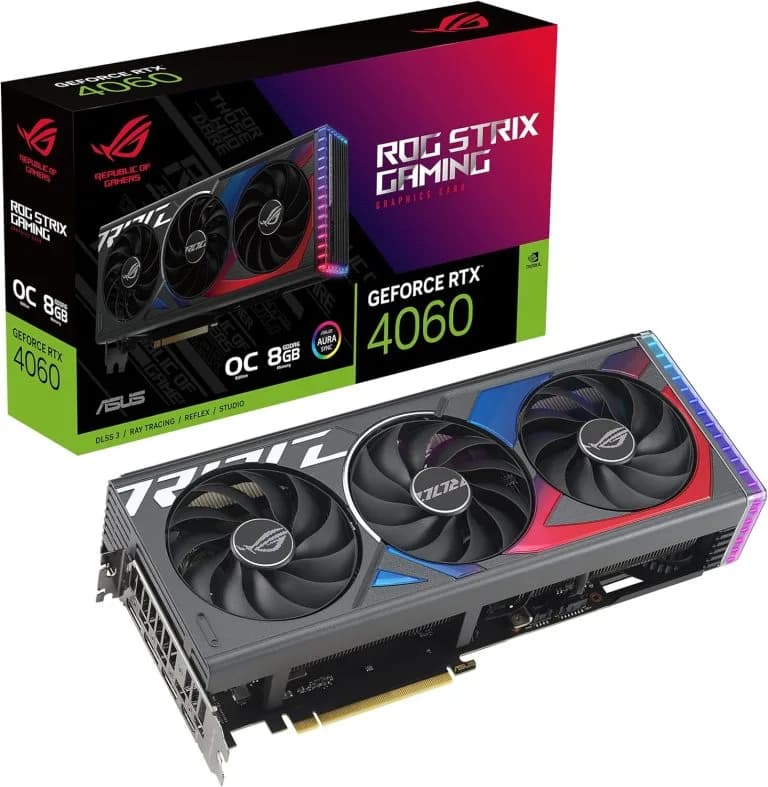
- Graphics drivers are essential for a GPU to work. But when an old installation leaves files, settings or system entries behind, a new version can run into conflicts.
- Display Driver Uninstaller was designed precisely for these situations. It supports drivers from several manufacturers, including NVIDIA, AMD and Intel, and can remove much of what an old installation leaves behind.
When a simple reinstall is no longer enough
In most cases, updating a graphics driver is a fairly routine operation. The software supplied by NVIDIA, AMD or Intel takes care of replacing the old version. But some situations are less straightforward. An installation can fail, a game can start crashing after an update, or Windows can keep running into display problems. Things get even trickier when you switch manufacturers, for example moving from an AMD card to an NVIDIA one. In these cases, various pieces of the old installation can be left behind. That is where DDU comes in.
DDU cleans out old drivers
Display Driver Uninstaller does not just remove the program visible in Windows. The utility can also go after the files, folders, registry entries and other components associated with the graphics driver. The software lets you select the manufacturer concerned before starting the clean-up. NVIDIA, AMD and Intel are supported, and recent versions also handle some additional GPUs. The goal is simple: remove the old installation before installing a new one. This should not, however, be read as an absolutely complete removal of every single element. Some specific components, or ones linked to the computer’s manufacturer, may deliberately be kept when the machine needs them to work.
Safe mode is still the better option
DDU can run from a normal Windows session, but using it in safe mode is recommended. Why? Because Windows uses some of the driver’s files and services while the system is running. In safe mode, far fewer components are active, which makes the clean-up easier. Before you start, it is also wise to take a few precautions. A backup of your important data and, ideally, a restore point give you a fallback if something goes wrong. On a machine protected by BitLocker, you should also make sure you have access to the recovery key before restarting in safe mode.
Watch out for Windows Update
There is another detail not to overlook. After the driver has been removed, Windows may try to install a graphics driver automatically through Windows Update. This can happen before the user has even had time to install the version they want manually. DDU therefore offers options to block this temporarily. The developer also recommends disconnecting from the internet during the operation, then reconnecting once the new driver has been installed. Once the old driver has been removed, the display may temporarily run on Windows’ generic graphics driver. This is normal. All you then need to do is install the official driver for your GPU.
Not something to use with every update
This is probably the most important point. DDU is not a cleaning tool to be used as a matter of routine. If your graphics card is working properly and a new driver version installs without any problems, there is generally no reason to wipe the old installation completely. The tool is mainly useful when the usual methods fail: an installation that crashes, problems that persist after an update, a change of manufacturer, or conflicts between old and new versions. You should also know that a clean-up can delete some custom settings associated with the driver, such as graphics profiles or settings.